Changelog
Every release of PlexusTerm with its notes, newest first. Downloads are on GitHub Releases.
PlexusTerm 0.1.5
Release on GitHubPlexusTerm 0.1.5 fixes the link between the file browsers and the terminal.
Fixes
- Follow terminal folder off now unlinks both ways. With the box unticked in the Explorer or the SFTP browser, opening a folder there no longer runs
cdin the terminal. Before, only Settings → Files → Change the terminal's folder when you open a folder in the file browser could stop it.
Install
Download the file for your system from Assets below. Install it the same way as 0.1.0, replacing 0.1.0 with 0.1.5 in the file names. Verify downloads with sha256sum -c checksums.txt. On Windows, SmartScreen warns because the installer is not signed: choose More info → Run anyway.
Full Changelog: https://github.com/jorgealonsodev/PlexusTerm/compare/v0.1.4...v0.1.5
PlexusTerm 0.1.4
Release on GitHubPlexusTerm 0.1.4 adds a file explorer for your computer, drag and drop into the terminal, saved AI conversations and import from ~/.ssh/config.
New
- File explorer. A new sidebar tab, Explorer, browses the local disk and follows the folder of the local terminal: at once for shells that report it (OSC 7), otherwise every second on Linux and macOS. Create, rename, delete, change permissions and open files with the text editor of your choice or any program. It is the file tab shown for local terminals.
- Drag and drop into the terminal. Drop a folder from the Explorer or SFTP on an empty command line to
cdto it; anything else types its path at the cursor, quoted for the tab's shell (PowerShell and cmd included). - The terminal follows the file browser. Opening a folder in SFTP or the Explorer runs
cdto it in its terminal, only when nothing is typed on the command line. Turn it off in Settings. - SFTP follows the remote folder without shell setup. When the remote shell does not report its folder, PlexusTerm reads it on the server over the same connection, without typing anything in your terminal (Linux servers).
- Import from
~/.ssh/config. Import → From ~/.ssh/config in the Sessions panel turns eachHostinto a saved session with its host name, user, port, private key andProxyJumpjump hosts, after a preview. Importing again only adds new hosts. - Saved AI conversations. The AI chat lists your conversations so you can reopen or delete them; they are kept on disk unless you turn that off.
- Attach without asking. Send a selection or attached files to the AI without typing a question; files dropped on the chat are attached to the next question.
- Selection actions. The terminal's right-click menu has new actions for the selected text.
- Starting folder. Settings choose the folder new local terminals start in.
- Sidebar. Choose whether it opens as you left it, open or folded. Each panel explains itself from a help icon, and every tab is named in its tooltip. File lists hide sizes and dates unless Settings show them.
Fixes
- An
ai-chats.jsonthat cannot be read is never written over. - Right click pastes again on macOS.
- PowerShell paths are quoted safely when dropped or typed.
- The help icon no longer covers the rows of the lists.
Install
Download the file for your system from Assets below. Install it the same way as 0.1.0, replacing 0.1.0 with 0.1.4 in the file names. Verify downloads with sha256sum -c checksums.txt. On Windows, SmartScreen warns because the installer is not signed: choose More info → Run anyway.
Full Changelog: https://github.com/jorgealonsodev/PlexusTerm/compare/v0.1.3...v0.1.4
PlexusTerm 0.1.3
Release on GitHubPlexusTerm 0.1.3 lets you choose the shell of local terminals, resize the sidebar, and tells you when a new version is out.
New
- Choose the shell. Settings → Terminal → Shell for local terminals lists the shells installed on your computer: PowerShell 7, Windows PowerShell, cmd, WSL and Git Bash on Windows;
$SHELLand/etc/shells(bash, zsh, fish...) on Linux. Other… runs any program, with its arguments. New local terminals open with it. - Saved local terminals. The session dialog has a new type, Local terminal: a shell, its arguments and a starting directory (
~is your home folder). A PowerShell, a WSL distribution or a project folder is one double-click away in the Sessions panel. - Resizable sidebar. Drag the sidebar's edge to make it wider or narrower (160 to 640 px); double-click the edge to go back to the default width. PlexusTerm remembers it.
- Update notice. When PlexusTerm starts it asks GitHub, once, for the latest published release. If it is newer, a bar offers Download, which opens the release page. Settings → About has Check for updates, and the startup check can be turned off there. PlexusTerm never downloads or installs anything by itself.
Fixes
- Run in the AI chat clears the line with the keys the tab's shell understands: Ctrl+End Ctrl+Home for PowerShell and cmd on Windows, Ctrl+E Ctrl+U for bash, zsh, fish, WSL and Git Bash. The AI is also told which shell the tab runs.
Before you update
- Older versions cannot read a sessions file with a saved local terminal. If you save one and later go back to 0.1.2 or earlier, that version shows an error instead of your sessions. Settings and other sessions are unaffected.
Install
Download the file for your system from Assets below. Install it the same way as 0.1.0, replacing 0.1.0 with 0.1.3 in the file names. Verify downloads with sha256sum -c checksums.txt. On Windows, SmartScreen warns because the installer is not signed: choose More info → Run anyway.
Full Changelog: https://github.com/jorgealonsodev/PlexusTerm/compare/v0.1.2...v0.1.3
PlexusTerm 0.1.2
Release on GitHubPlexusTerm 0.1.2 fixes running AI chat commands in local Windows terminals. Update if you use PlexusTerm on Windows; nothing changes on Linux.
Fixes
- Windows: "Run" in the AI chat sends the command as written. Before sending a command, PlexusTerm clears whatever was half typed. It did so with Ctrl+E Ctrl+U, which PowerShell and cmd do not understand: they kept the keys as text, and the command became
^E^USelect-String ...("not recognized as the name of a cmdlet"). Local Windows shells now get Ctrl+End and Ctrl+Home; Linux, macOS and remote sessions (SSH, Mosh, Telnet, serial) keep Ctrl+E Ctrl+U.
Install
Download the file for your system from Assets below. Install it the same way as 0.1.0, replacing 0.1.0 with 0.1.2 in the file names. Verify downloads with sha256sum -c checksums.txt.
Full Changelog: https://github.com/jorgealonsodev/PlexusTerm/compare/v0.1.1...v0.1.2
PlexusTerm 0.1.1
Release on GitHubPlexusTerm 0.1.1 fixes saving secrets on Windows. Update if you use PlexusTerm on Windows; nothing changes on Linux.
Fixes
- Windows: API keys and SSH passwords can be saved again. Saving any secret to the system keyring failed on Windows (for example, the OpenCode Go key in Settings → AI). PlexusTerm passed the keyring a label option that only the Linux Secret Service understands; it is now sent on Linux only.
- Readable error when a key cannot be saved. Settings → AI showed
Could not save the key: [object Object]instead of the actual reason.
Install
Download the file for your system from Assets below. Install it the same way as 0.1.0, replacing 0.1.0 with 0.1.1 in the file names. Verify downloads with sha256sum -c checksums.txt.
Full Changelog: https://github.com/jorgealonsodev/PlexusTerm/compare/v0.1.0...v0.1.1
PlexusTerm 0.1.0
Release on GitHubPlexusTerm 0.1.0 is the first release: one window for local shells, SSH, SFTP, tunnels, serial, Telnet and Mosh, with an AI assistant next to every terminal. It runs natively on Linux and Windows and speaks ten languages.
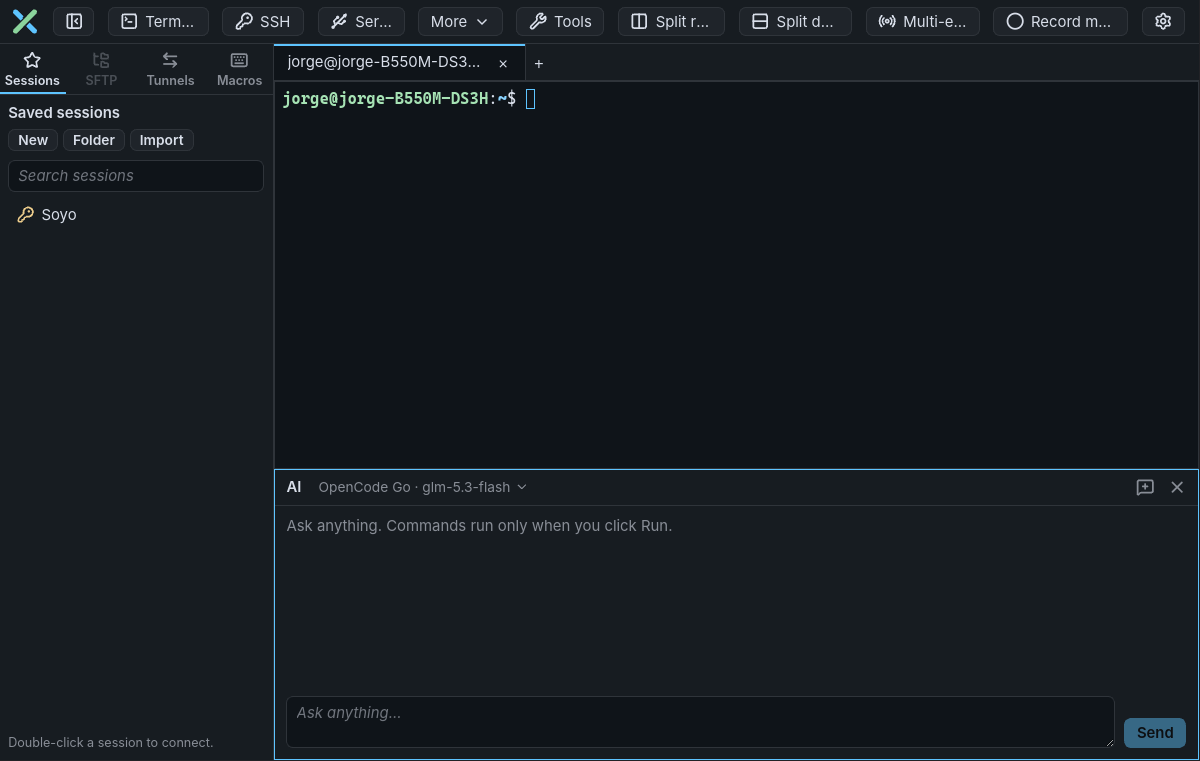
Quick path
- Download the file for your system from Assets below and install it (see the table).
- Press Ctrl+Shift+T for a local terminal, or Ctrl+Shift+S to connect over SSH (
user@host:port). - Optional: add an API key in Settings → AI, then press Ctrl+Shift+Space to open the AI chat under the terminal.
| System | File | Install |
|---|---|---|
| Debian / Ubuntu | plexusterm_0.1.0_linux_amd64.deb (or arm64) |
sudo apt install ./plexusterm_0.1.0_linux_amd64.deb |
| Fedora / RHEL / openSUSE | plexusterm_0.1.0_linux_x86_64.rpm (or aarch64) |
sudo dnf install ./plexusterm_0.1.0_linux_x86_64.rpm |
| Any Linux, per user | plexusterm_0.1.0_linux_amd64.tar.gz (or arm64) |
extract it and run install.sh |
| Windows 10/11 | plexusterm_0.1.0_windows_x86_64-setup.exe or .msi |
run the installer |
What you get
| Area | In this release |
|---|---|
| AI assistant | A chat pane under the terminal that answers any question in your language and offers a command with Copy, Insert or Run; the conversation survives closing the chat. Inline suggestions from your own history, optionally completed by the AI. Anthropic, Gemini, OpenAI, OpenAI-compatible (Ollama, LM Studio, OpenRouter) and OpenCode Go. |
| Sessions | Tabs with up to 4 split panes; SSH with password, key or agent login, known_hosts checks and up to 3 jump hosts; Telnet, Mosh and serial; a saved-session library with folders, search and import from .ini session files. |
| Files and tunnels | SFTP browser next to each SSH tab (drag-and-drop upload, open, edit and re-upload, compare, permissions); local, remote and SOCKS5 tunnels. |
| Tools | SSH key generator (Ed25519, RSA, ECDSA, PuTTY .ppk), port and network scanners, Wake On LAN, remote monitor bar, multi-execution, macros. |
| Look and language | 57 colour schemes that dress the whole window; the interface in English, Spanish, German, French, Japanese, Portuguese (Brazil), Simplified Chinese, Korean, Arabic (right to left) and Hindi, following the system language. |
Your safety
- Nothing runs unless you click Run or press Enter; Run refuses at password prompts and in full-screen programs.
- The terminal output is never sent to an AI provider, and API keys and saved passwords live only in the system keyring.
- Password, PIN and one-time-code prompts are recognised in the ten interface languages, so typed secrets never reach AI suggestions or the command history.
- A strict content security policy, rustls 0.23.46, and the other fixes from a Strix security scan are included.
Checklist
- Verify the download:
sha256sum --ignore-missing -c checksums.txtnext tochecksums.txt. - On Windows, expect Mosh to be unavailable and closed ports to show as filtered in the scanners.
- Error messages from the connection backend are still in English, and the translations have not had a native review yet: reports are welcome.
Next step
Read the user guide for every feature and its limits, and open an issue for bugs or ideas. Licensed under the MIT License.